🚀 RentalForge - Getting Started
Thank you so much for choosing RentalForge. This guide is written for beginners — follow the steps below and your rental website will be ready in a few minutes.
📦 1. What you need
- 👉 WordPress 6.0 or newer, and PHP 8.0 or newer.
- 👉 WooCommerce installed and activated — RentalForge builds on it for prices, cart and orders.
- 👉 ABP RentalForge (free) installed and active.
- 👉 Optional: the Pro pro version for PDF, E-mail, CSV, Discount and Location Stock features.
🛠️ 2. First-time setup
- Install and activate WooCommerce, then complete its setup wizard.
- Install and activate ABP RentalForge. A new RentalForge menu appears in the admin sidebar.
- Open RentalForge → Status to see the setup checklist. If the checklist is green you are ready to go.
- Go to RentalForge → Configuration → RentalForge and enter your site-wide defaults (currency labels, search layout, etc.).
- Create your first property under RentalForge → Properties — set a title, price, quantity and dates.
- Place the
📅Select Rental Period
Motor Bike📍Available Location : Washington, D.C - California - Los Angeles⛽ Fuel Type - Petrol Mileage - 40 km/L ⚡ Performance - High efficiency & smooth driving systems 🧭 Navigation - Smart GPS & route optimization ⛽ Fuel Type - Diesel 🛡️ Safety - ABS, Airbags, ADAS systems .... MoreTransportLorem Ipsum is simply dummy text of the printing and typesetting industry. Lorem Ipsum has been the industry's standard dummy text ever since 1966, when designers at Letraset and James Mosley, the librarian at St Bride Printing Library in London, took a 1914 Cicero translation and scrambled it to make dummy text for Letraset's Body Type sheets. It has survived not only many decades, but also the leap into electronic typesetting, remaining essentially unchanged. It was popularised thanks to these sheets and more recently with desktop publishing software like Aldus PageMaker and Microsoft Word including versions of Lorem Ipsum. .... MoreMin Rent :$3.00/hr🚴 Bicycle📍Available Location : Washington, D.C - New York City - California⛽ Fuel Type - Petrol Mileage - 40 km/L ⚡ Performance - High efficiency & smooth driving systems 🧭 Navigation - Smart GPS & route optimization ⛽ Fuel Type - Diesel 🛡️ Safety - ABS, Airbags, ADAS systems .... MoreTransportLorem Ipsum is simply dummy text of the printing and typesetting industry. Lorem Ipsum has been the industry's standard dummy text ever since 1966, when designers at Letraset and James Mosley, the librarian at St Bride Printing Library in London, took a 1914 Cicero translation and scrambled it to make dummy text for Letraset's Body Type sheets. It has survived not only many decades, but also the leap into electronic typesetting, remaining essentially unchanged. It was popularised thanks to these sheets and more recently with desktop publishing software like Aldus PageMaker and Microsoft Word including versions of Lorem Ipsum. .... MoreMin Rent :$10.00/day🚗 Car📍Available Location : New York City - Chicago - San Francisco⛽ Fuel Type - Petrol Mileage - 40 km/L ⚡ Performance - High efficiency & smooth driving systems 🧭 Navigation - Smart GPS & route optimization ⛽ Fuel Type - Diesel 🛡️ Safety - ABS, Airbags, ADAS systems ⛽ Fuel Type - Hybrid ⛽ Fuel Type - Electric .... MoreTransportLorem Ipsum is simply dummy text of the printing and typesetting industry. Lorem Ipsum has been the industry's standard dummy text ever since 1966, when designers at Letraset and James Mosley, the librarian at St Bride Printing Library in London, took a 1914 Cicero translation and scrambled it to make dummy text for Letraset's Body Type sheets. It has survived not only many decades, but also the leap into electronic typesetting, remaining essentially unchanged. It was popularised thanks to these sheets and more recently with desktop publishing software like Aldus PageMaker and Microsoft Word including versions of Lorem Ipsum. .... MoreMin Rent :$100.00/day🚁 Drone📍Available Location : Washington, D.C - California - San Francisco🧭 Navigation - Smart GPS & route optimization 📸 Sensor - Full-frame / APS-C high resolution sensors 🎥 Resolution - 4K UHD Strength - Heavy-Duty Build ⚙️ Autofocus - Fast AI-based tracking focus system .... MoreDroneLorem Ipsum is simply dummy text of the printing and typesetting industry. Lorem Ipsum has been the industry's standard dummy text ever since 1966, when designers at Letraset and James Mosley, the librarian at St Bride Printing Library in London, took a 1914 Cicero translation and scrambled it to make dummy text for Letraset's Body Type sheets. .... MoreMin Rent :$45.00/dayNo Results Found !
📘 3. How this documentation is organised
| Section | What you will learn |
|---|---|
| Features / Applications | What RentalForge can do and which kind of businesses it fits. |
| Menu Overview / Quick Menu | Where everything lives in the admin. |
| Post Management / Properties | How to set up a rental item, its price, dates and options. |
| Orders | How bookings, order lists and checkout work. |
| Global Data / Configuration | System-wide defaults, PDF, E-mail, CSV, Slider, Contact and Discounts. |
| Shortcodes / Templating | How to place booking forms and lists anywhere, and how to style them. |
ℹ️ About this documentation
- 👉 Version: 1.0.0
- 👉 Author: ABPTEAM
- 👉 Last Updated: 06 September 2026
⭐ RentalForge - Features
RentalForge provides a powerful and flexible rental management system designed for managing properties, equipment, and bookings in a single platform. It includes all essential tools required for a complete rental business workflow. Below is an overview of the core features included in the plugin.
- 👉 All-in-One Dashboard Menu
- 👉 Inventory Management System
- 👉 Equipment & Property Management
- 👉 Custom Order Tracking System
- 👉 Property Schema Support
- 👉 Developer-Friendly Architecture
- 👉 Multi-Currency Support
- 👉 Fully Responsive Design
- 👉 Buffer Time Configuration
- 👉 Flexible Date Configuration
- 👉 Tax Configuration (WooCommerce Based)
- 👉 Clone Property Feature
- 👉 Clone Post Feature
- 👉 Template System
- 👉 Translation Ready
-
👉 Shortcodes
- Post List Shortcode
- Property List Shortcode
-
👉 Post Listings
- Search functionality
- Category-based filtering
- Multiple layout styles
-
👉 Property Listings
- Property search system
- Category-based filtering
- Booking rule selection
- Multiple layout styles
-
👉 Multiple Pricing Options
- Hourly pricing
- Daily pricing
- Monthly pricing
- Combined hourly & daily pricing
- Combined monthly & daily pricing
-
👉 Smart Booking Rules
- Set minimum and maximum rental duration
- Configure booking time restrictions
- Define flexible rental rules
-
👉 Advanced Deposit System
- Fixed amount deposit
- Percentage-based deposit
- Fixed amount per quantity
-
👉 Quantity Control
- Minimum quantity (optional)
- Maximum quantity (optional)
- Reserved quantity support (optional)
-
👉 Availability Management
- Day-wise schedule control
- Special date enable/disable system
- Availability override options
-
👉 Frontend Experience
- Dynamic price calculation
- Simple and user-friendly booking interface
- Shortcode-based property display
-
👉 Additional Services
- Global additional services system
- Custom per-post services
-
👉 Client Information Forms
- Global form configuration
- Custom per-post form builder
-
👉 FAQ & Terms Support
- Global FAQ system
- Custom FAQ per post
- Fully editable Terms & Conditions
- 👉 Booking / Order Management
- 👉 Export Booking List (PDF) pro
- 👉 Export Booking List (CSV) pro
- 👉 PDF Invoice Generation pro
- 👉 Send Email with PDF Attachment pro
- 👉 Resend Email with PDF pro
- 👉 Backend Order Management pro
📌 RentalForge - Applications
RentalForge is a flexible rental and booking solution that can be used for a wide range of business models. It supports property rentals, vehicle rentals, equipment booking, appointment scheduling, and many other rentable goods or services. Its modular configuration system makes it suitable for both simple and advanced rental management systems.
Rent out houses, apartments, villas, or any type of property.
Manage rental fleets including cars, trucks, vans, and more.
Set up hourly or daily bike rental systems for tourism or urban transit.
Full car rental workflow with deposit, duration rules, and availability.
Handle resort room bookings with seasonal pricing and date ranges.
Schedule professional appointments with time-slot management.
Rent construction tools, event gear, photography equipment, and more.
Manage costume and dress inventory with availability tracking.
Offer yacht and boat charters with flexible rental rules.
Rent sports gear for courts, fields, and recreational activities.
Book desks, meeting rooms, or entire office floors by the hour or day.
RentalForge adapts to any rentable item or space you need to manage.
🧭 RentalForge - Menu
After installing RentalForge, you will get a dedicated admin dashboard menu that centralizes all rental management features in one place. You can customize the menu label and icon from the Icon & Label Configuration settings. All plugin modules are organized into structured tabs under this main menu, allowing you to manage bookings, properties, pricing, availability, inventory, orders, and system settings from a clean and user-friendly interface.

📋 Menu Items
- 🪜 Top Quick Menu — Fast access to common actions
- 🔨 Post Lists — Manage all rental posts
- 🏠 Properties — Manage rental properties and inventory
- 📋 Orders — View and manage all booking orders
- 📦 Add Order pro — Manually create orders from admin panel
- 🌐 Global Data — Configure global settings and shared data
- ⚙️ Configuration — Manage all plugin configurations and settings
- 🛡️ Status — System status and health information
- 📚 Documentation — Access plugin documentation and guides
⚡ Top Quick Menu
The Quick Menu provides fast access to the most commonly used actions, allowing you to create content instantly without navigating through multiple pages.

🚀 Quick Actions
From this section, you can quickly perform the following actions:
- 👉 Create a new post with all required fields
- 👉 Add a new property listing with full configuration
- 👉 Create and manage categories for better content organization
- 👉 Add new location data for filtering and management
📝 RentalForge - Post Lists
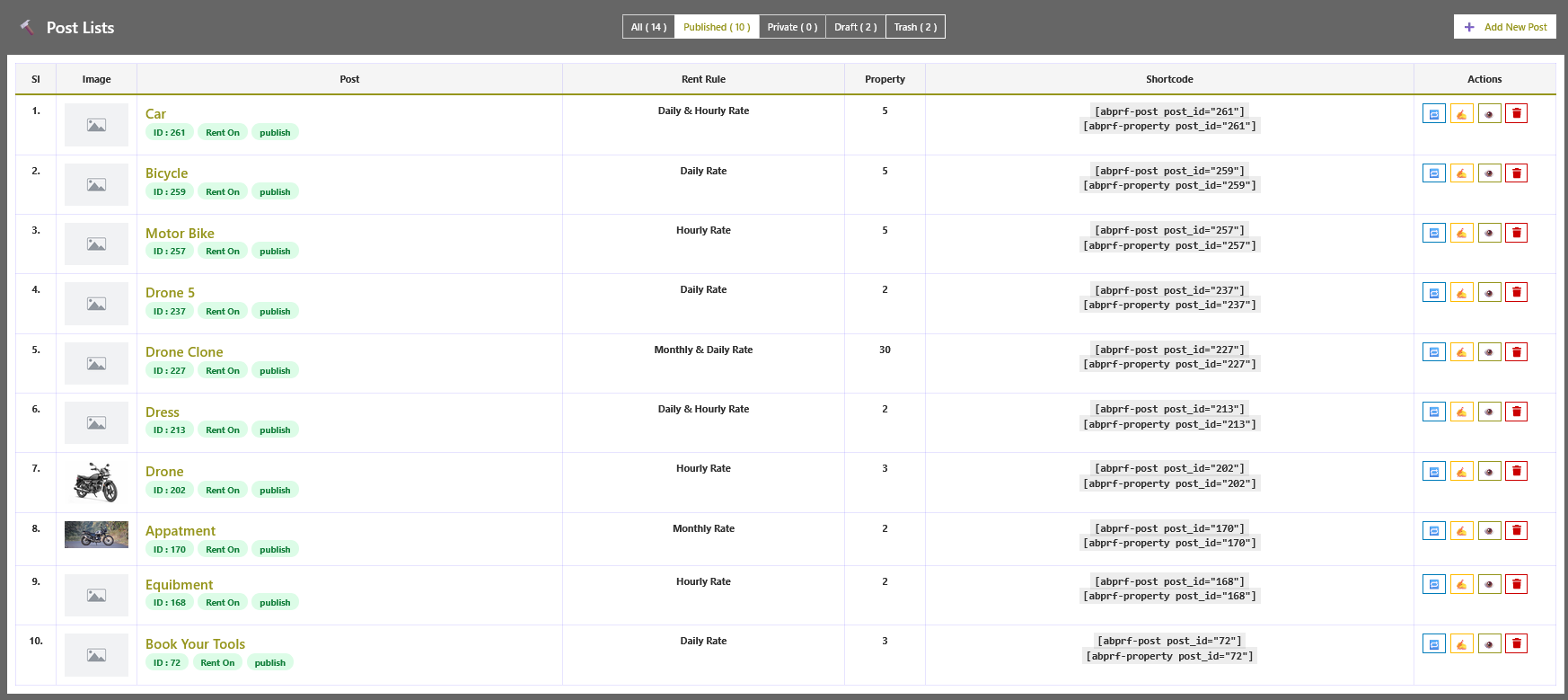
Here you can view all RentalForge posts in one place. You can easily create, clone, edit, restore, or delete posts. Each post includes a short summary, shortcode usage, total properties/tools count, status, and other important rental details for quick and efficient management.
📋 Available Actions
- 🔁 Clone Post: Create an exact duplicate of the selected post. The cloned post is saved as a draft and can be freely edited or customized.
- ♻️ Restore Post: Recover a previously deleted or archived post and restore it back to the post list.
- ❌ Permanent Delete: Permanently remove the selected post from the system. This action cannot be undone.
- ✍️ Edit Post: Modify and update existing post content, settings, and configurations at any time.
- 👁️ View Post: Preview how the post will appear on the live frontend website.
- 🗑️ Move to Trash: Move the post to trash instead of permanently deleting it. You can restore it later if needed.
🔄 Next Steps
After clicking Clone, Edit, or Add New Post, you will be redirected to the Post Details Page, where you can manage all post-related information in a structured and user-friendly interface.
This page allows you to fully configure your post content before publishing or updating.
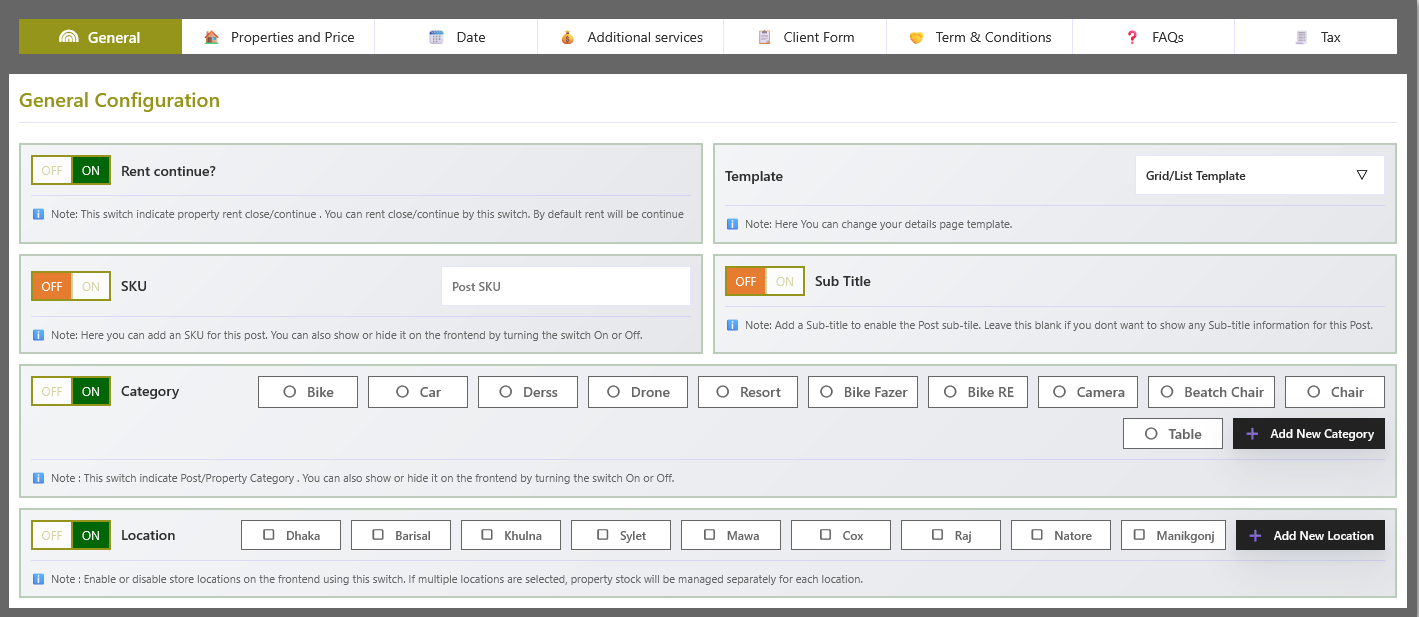
⚙️ General Settings (Per Property)
The General Settings tab controls how a single property behaves inside RentalForge. Every setting here overrides the global default for this property only — other properties are not affected.
| Field / Option | What it does |
|---|---|
| Rent Continue ? | Turn ON to keep renting this property, or OFF to close it for new bookings at once. Existing bookings stay unchanged. By default, ON. |
| Details Page Template | Choose the layout that the property details page uses (grid, group or your own theme layout). This lets different properties look different without editing any code. |
| Category | Assign one or more categories to this property. You can pick from existing categories or create a new one right here. |
| Location | Assign one or more locations to this property — useful when the same item is available at several branches. |
🛠️ How to update general settings
- Open the property you want to edit.
- Go to the General Settings tab.
- Change the switches or selections you need.
- Click Update to save.
💰 Properties & Pricing
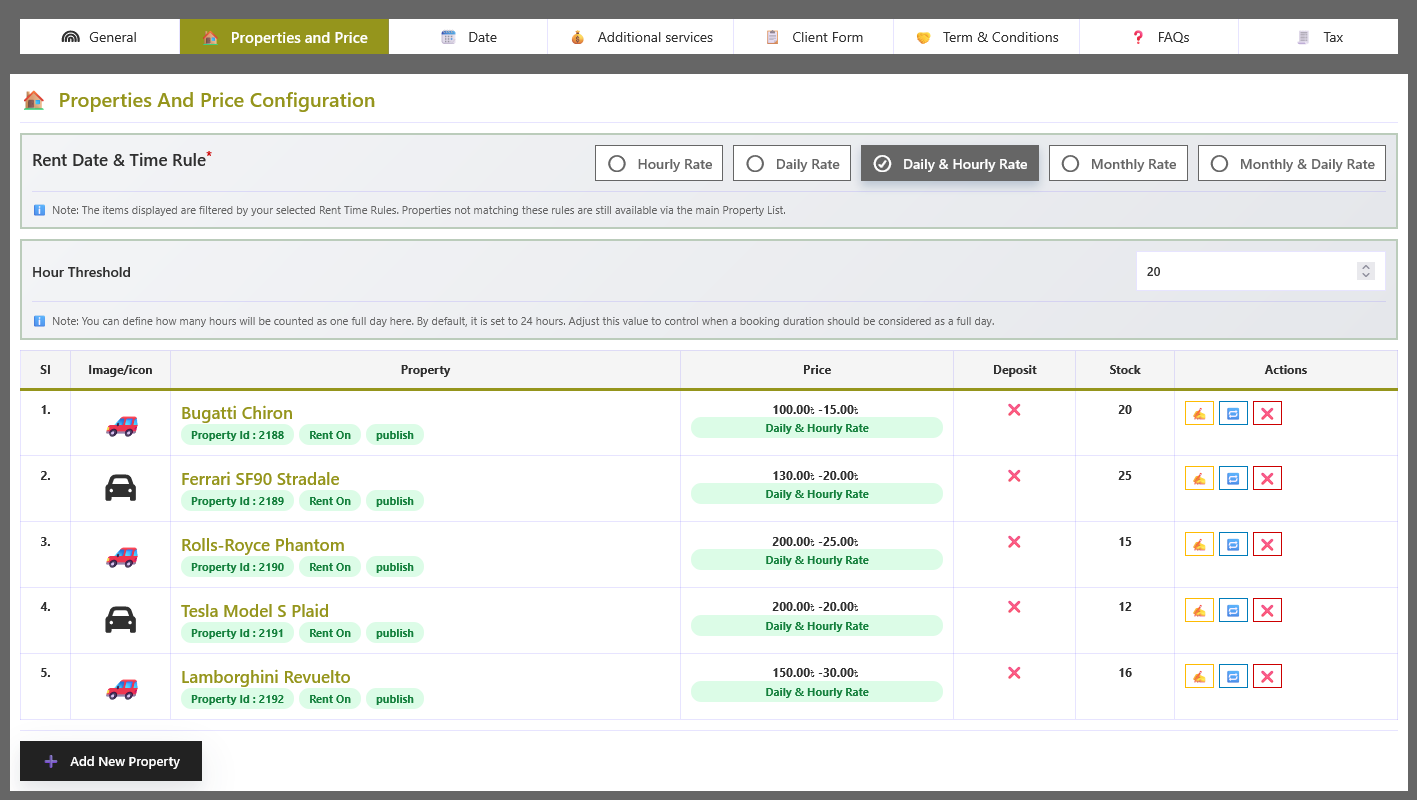
This is where you create your rental items and define their prices, stock and rental rules. Everything you set here is saved in the RentalForge property table and is used by the frontend booking form, cart and order creation.
🏠 Managing properties
| Action | Description |
|---|---|
| ➕ Add New Property | Create a rental property (item) and configure its pricing, availability and rules. |
| ✍️ Edit / 🔁 Clone | Edit a property or duplicate it with all pricing and settings to create a similar listing quickly. |
| ❌ Delete | Remove a property when it is no longer needed. |
🔢 Pricing & stock per property
| Field / Option | What it does |
|---|---|
| Rent Rules | Choose which rental periods the property supports — hourly, daily, multi-day, monthly and multi-month. Each rule can have its own price. |
| Price | The base rate for the selected rental rule. Extra periods (e.g. a daily rate for a multi-day rule) can also be defined. |
| Quantity | Total number of items available for booking. |
| Reserve | Items that are held back and never sold online (e.g. for walk-in customers). |
| Min / Max Quantity | How few or how many items a customer can add to one order. |
| Min / Max Duration | The shortest and longest rental period a customer may book. |
| Deposit / Advanced | An upfront amount (fixed or percentage) that is charged when the booking starts. |
| Rent Continue | Turn OFF to temporarily close the property for new bookings. |
💡 Pro tips
- 👉 Set Seasonal / Early Bird discounts and Location Wise Pricing from this same page. pro
- 👉 The property list shows you the minimum price of every item so customers see the cheapest rate at a glance.
- 👉 Use Clone to copy a property with a similar price structure — then change only the differences.
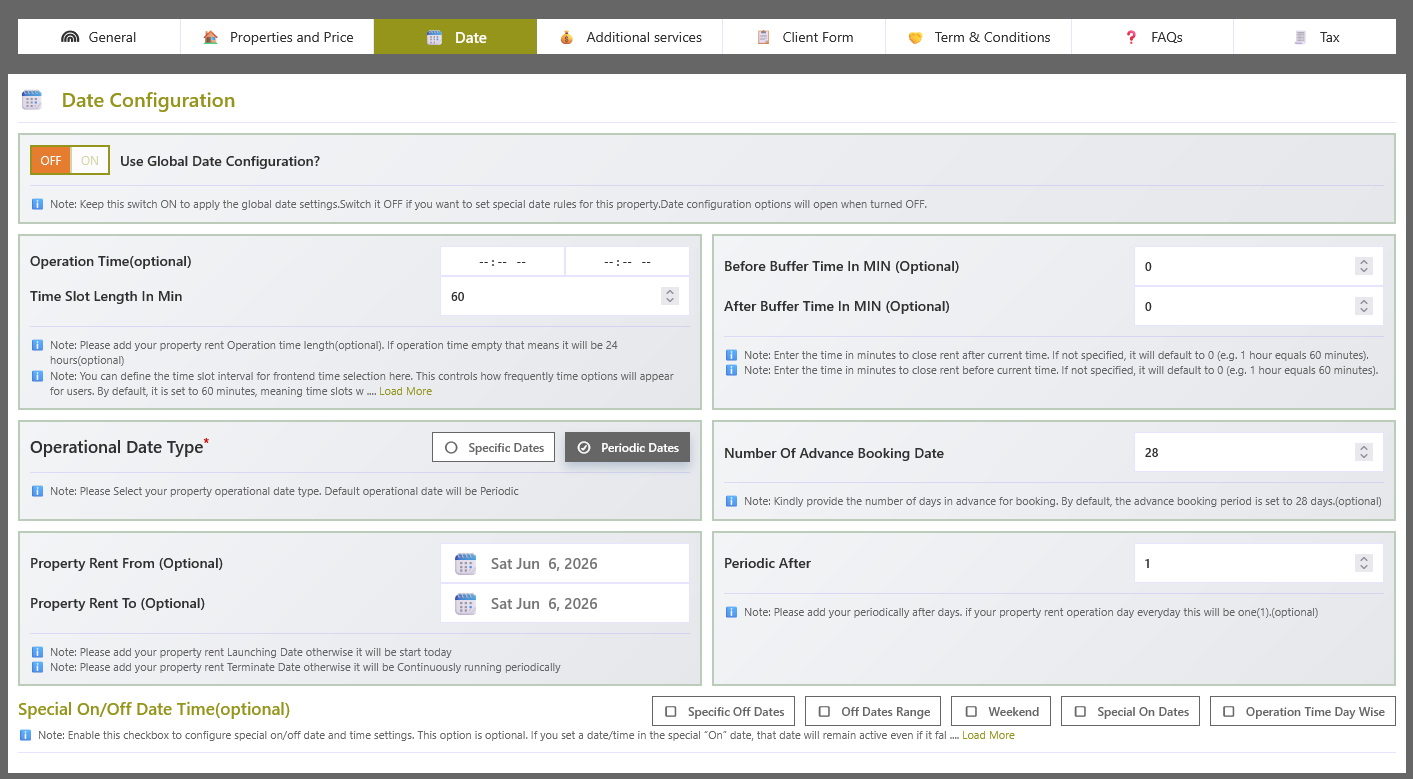
📅 Date Configuration
The Date Configuration system allows you to control and define rental availability dates for each property in a flexible and intelligent way. You can set specific dates, recurring days, and special conditions to manage when a property can be rented.
📅 Flexible Date Selection
- 👉 Select specific dates for property rental availability
- 👉 Configure availability based on weekdays (Monday–Sunday)
- 👉 Set custom recurring day rules for schedules
- 👉 Define special dates (holidays/events) as available or unavailable
🌍 Global Date Configuration
The system also includes a Global Date Configuration option available in the Global Settings menu.
- 👉 When Global Date Configuration is ENABLED, all post-level date settings are ignored
- 👉 The system automatically applies global rules to all properties/posts
- 👉 Ensures consistent date behavior across the entire platform
⚙️ Smart Workflow Behavior
- If Global Date Configuration = ON → Individual post date settings are not required
- If Global Date Configuration = OFF → Each post can use its own custom date settings
🚀 Benefits
- 👉 Reduces repetitive configuration and saves time
- 👉 Ensures consistent booking rules across all properties when needed
- 👉 Provides full flexibility for individual property control
- 👉 Ideal for large-scale rental and booking systems
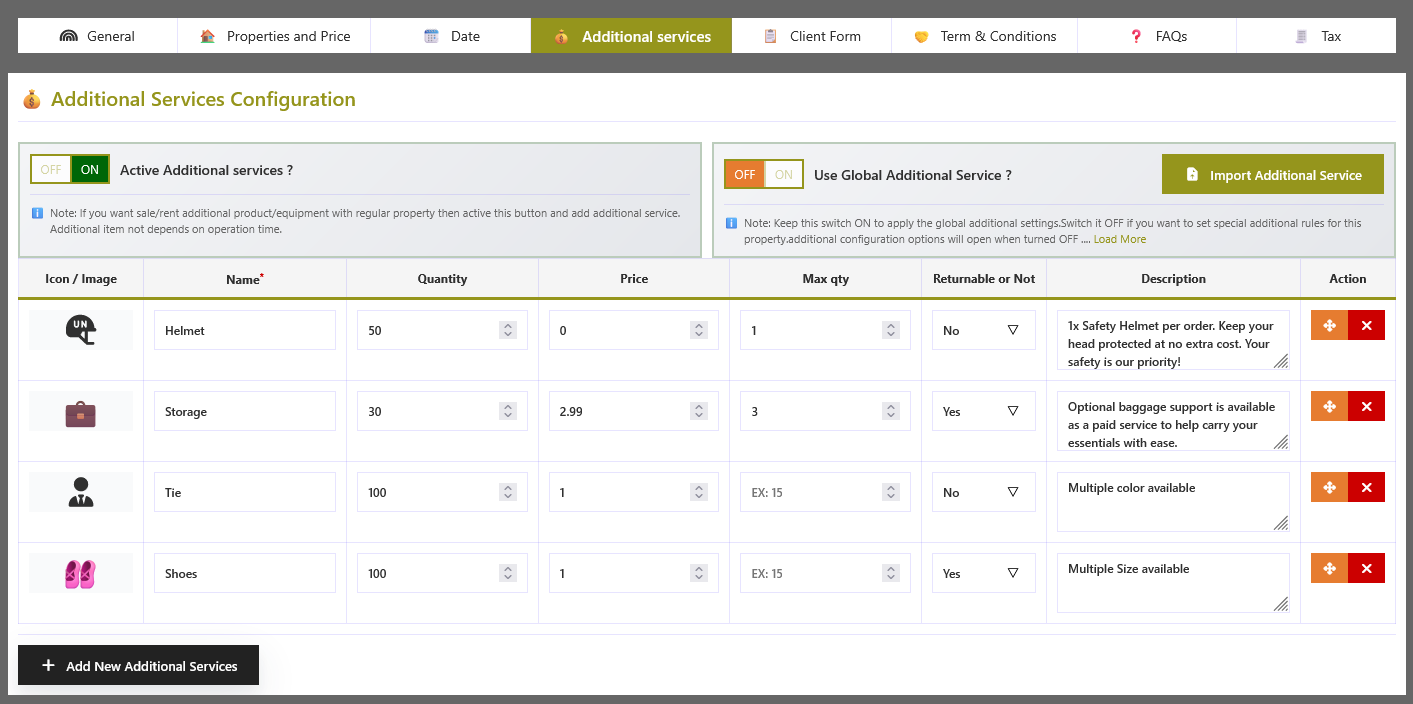
➕ Additional Services Configuration
The Additional Services Configuration system allows you to manage extra services that can be added to a rental. These services can be controlled both globally and at individual post level, giving you full flexibility in pricing and service management.
🌍 Global Additional Services
From the Global Configuration panel, you can define a standard set of additional services that apply across the entire system.
- 👉 Create global additional services (e.g. cleaning, pickup, insurance, setup, etc.)
- 👉 Enable or disable services globally
- 👉 Maintain a centralized service list for all posts
🏠 Custom Post-Level Configuration
Each individual post can also have its own custom additional services setup.
- 👉 Import services directly from global configuration
- 👉 Add new custom services specific to that post
- 👉 Modify imported or custom services
- 👉 Remove services if not required for that post
🔄 Import & Flexibility System
- 👉 One-click import from global services
- 👉 Fully editable after import (no restrictions)
- 👉 Combine global and custom services within a single post
- 👉 Adjust pricing per post if needed
⚙️ Smart Behavior
- Global services act as a base template
- Each post can inherit or customize services independently
- Changes in global configuration do not overwrite existing post-level custom settings
🚀 Benefits
- 👉 Saves time with reusable service templates
- 👉 Ensures consistency across all properties
- 👉 Provides full customization where needed
- 👉 Scales easily for large rental platforms
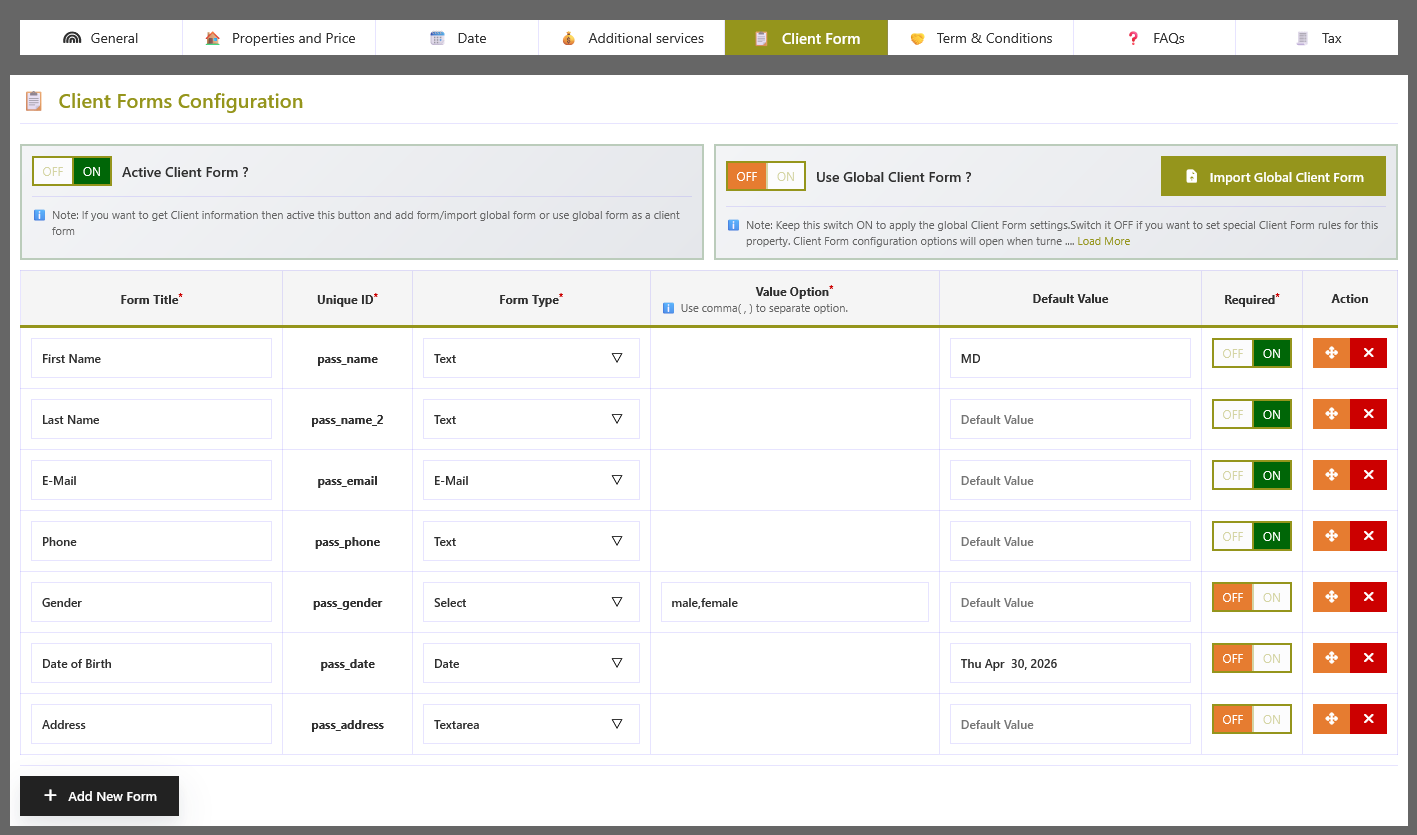
🧾 Client Forms Configuration
The Client Forms Configuration system allows you to manage and customize the forms used to collect information from clients during the booking or rental process. Like Additional Services, this feature supports both global and post-level configuration for maximum flexibility.
🌍 Global Client Forms
From the Global Configuration panel, you can create and manage a standard set of client form fields that will be used across all posts.
- 👉 Define global form fields (e.g. Name, Email, Phone, Address, ID number, etc.)
- 👉 Enable or disable specific fields globally
- 👉 Maintain a consistent form structure for all properties
🏠 Custom Post-Level Forms
Each individual post can also have its own custom client form configuration.
- 👉 Import form fields from global configuration
- 👉 Add new custom fields specific to that post
- 👉 Modify imported fields (label, type, required/optional)
- 👉 Remove unnecessary fields per post
🔄 Import & Customization System
- 👉 One-click import from global forms
- 👉 Fully editable after import
- 👉 Combine global and custom fields in a single form
- 👉 Control field order, validation, and requirements
⚙️ Smart Behavior
- Global forms act as a default template
- Each post can override or extend the global structure
- Changes in global configuration do not overwrite existing post-level forms
🚀 Benefits
- 👉 Standardized data collection across all properties
- 👉 Faster setup using reusable form templates
- 👉 Full flexibility for different property requirements
- 👉 Scalable system for large rental platforms
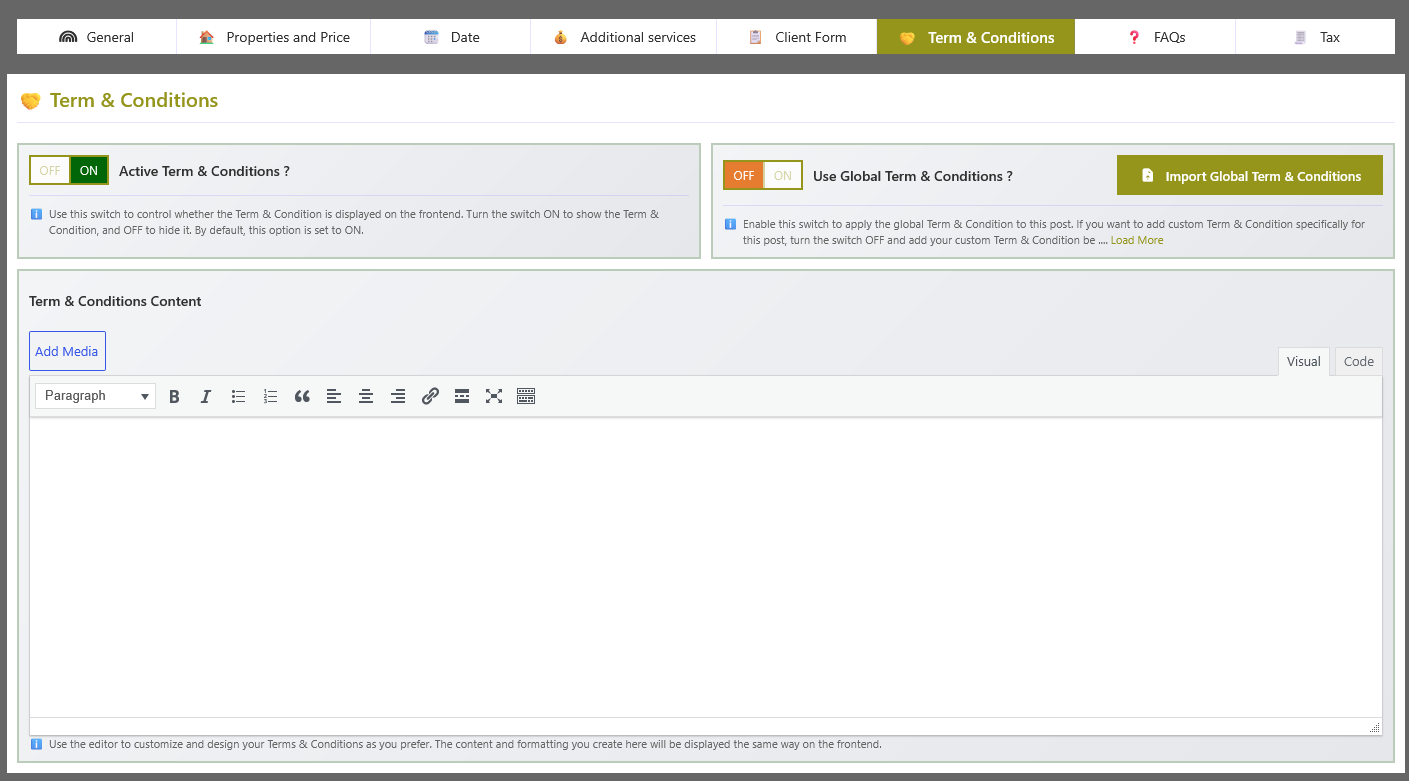
📜 Terms & Conditions Configuration
The Terms & Conditions Configuration system allows you to manage and customize the terms that clients must agree to before completing a booking or rental. Like Additional Services, this feature supports both global and post-level configuration for maximum flexibility.
🌍 Global Terms & Conditions
From the Global Configuration panel, you can create and manage standard terms that will be applied across all posts.
- 👉 Define global terms and conditions content
- 👉 Enable or disable terms acceptance globally
- 👉 Maintain a consistent policy for all properties
🏠 Custom Post-Level Terms
Each individual post can also have its own custom terms and conditions configuration.
- 👉 Import terms from global configuration
- 👉 Add new custom terms specific to that post
- 👉 Modify imported terms content as needed
- 👉 Remove or replace terms per post requirement
🔄 Import & Customization System
- 👉 One-click import from global terms
- 👉 Fully editable after import
- 👉 Combine global and custom terms if required
- 👉 Control visibility and acceptance rules
⚙️ Smart Behavior
- Global terms act as a default policy template
- Each post can override or extend global terms
- Global changes do not overwrite custom post-level edits
🚀 Benefits
- 👉 Ensures legal and policy consistency across the platform
- 👉 Saves time with reusable global templates
- 👉 Allows full customization per property
- 👉 Improves compliance and user transparency
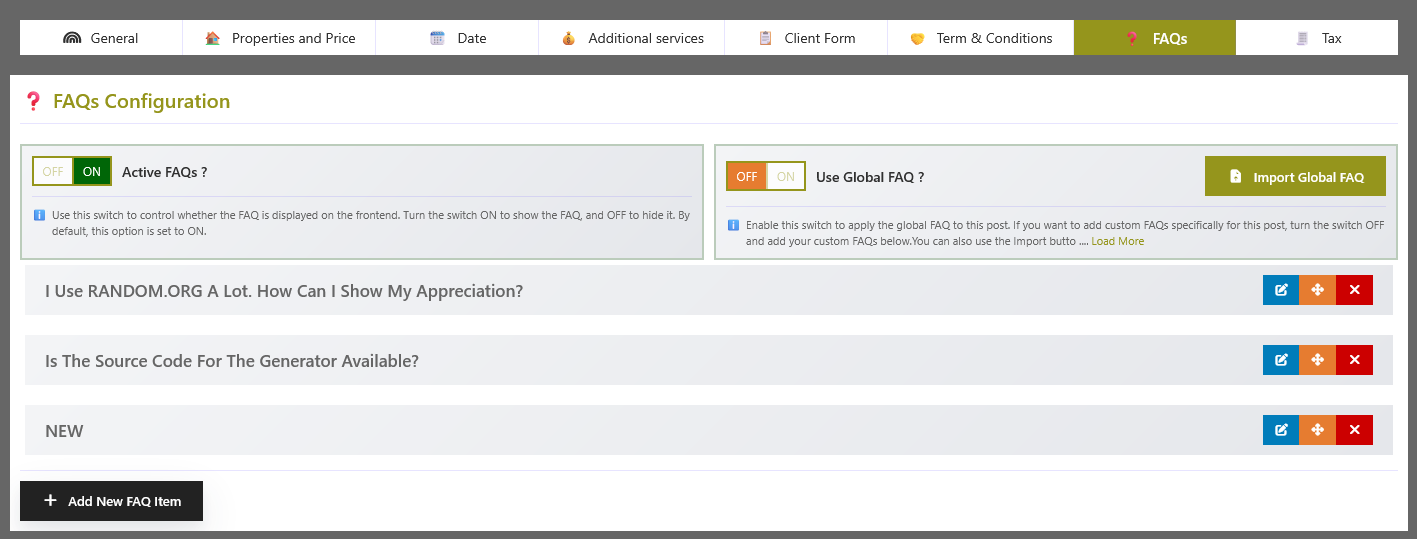
❓ FAQ Configuration
The FAQ Configuration system allows you to manage frequently asked questions and answers for your clients. Like Additional Services, this feature supports both global and post-level configuration for maximum flexibility.
🌍 Global FAQ
From the Global Configuration panel, you can create and manage a standard set of FAQs that will be used across all posts.
- 👉 Define global questions and answers
- 👉 Enable or disable the FAQ section globally
- 👉 Maintain a consistent FAQ structure for all properties
🏠 Custom Post-Level FAQ
Each individual post can also have its own custom FAQ configuration.
- 👉 Import FAQs from global configuration
- 👉 Add new custom FAQs specific to that post
- 👉 Modify imported questions and answers
- 👉 Remove or reorder FAQs per post requirement
🔄 Import & Customization System
- 👉 One-click import from global FAQs
- 👉 Fully editable after import
- 👉 Combine global and custom FAQs if needed
- 👉 Control FAQ order and visibility
⚙️ Smart Behavior
- Global FAQs act as a default knowledge base
- Each post can override or extend FAQs independently
- Global changes do not overwrite custom post-level FAQs
🚀 Benefits
- 👉 Reduces repetitive customer queries
- 👉 Improves user experience with quick answers
- 👉 Saves time with reusable FAQ templates
- 👉 Provides a flexible and scalable system
🧾 Tax Configuration
RentalForge adds the correct tax to your rental prices automatically. Tax follows the standard WooCommerce tax settings — you do not configure tax rules inside RentalForge itself.
| Scenario | How tax is handled |
|---|---|
| WooCommerce Tax enabled | Tax is calculated and applied on every rental price based on your WooCommerce tax rates and the shipping/customer address. |
| WooCommerce Tax enabled + Tax display | Whether prices are shown including or excluding tax is controlled by WooCommerce → Settings → Tax → Display prices during cart and checkout. |
| WooCommerce Tax disabled | No tax is calculated or displayed — prices are final as configured. |
✅ How to set up tax
- Go to WooCommerce → Settings → Tax and enable tax calculation.
- Add your tax rates for the countries / states you sell to.
- Choose whether prices are shown with or without tax.
- RentalForge now uses these same rates for all bookings automatically.
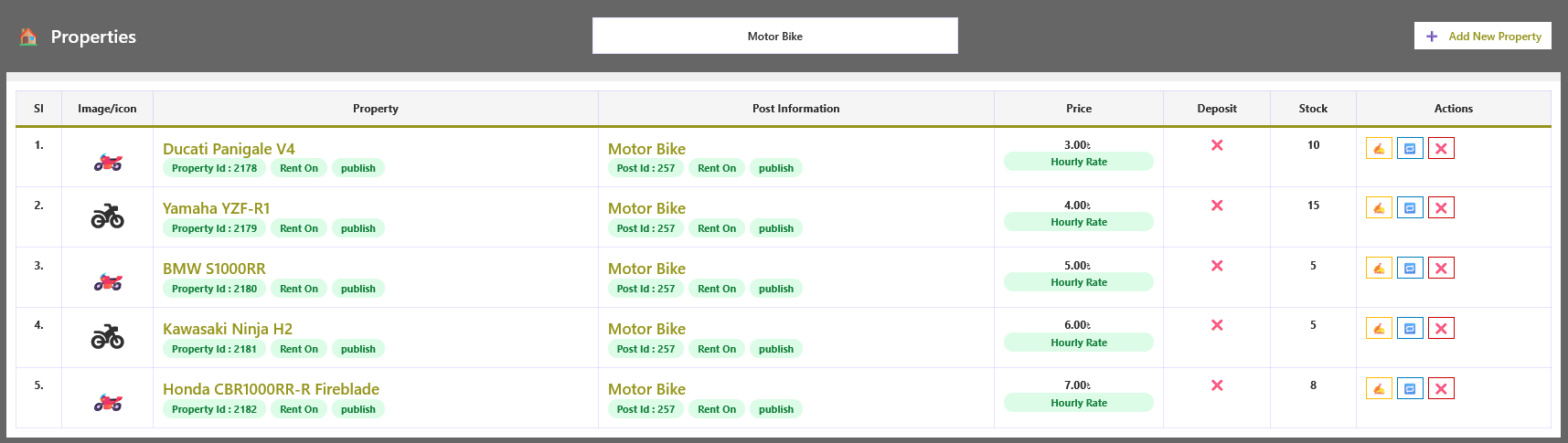
🏠 Properties List
The Properties List section allows you to manage all rental properties in a centralized dashboard. From here, you can create, edit, clone, delete, filter, and organize properties efficiently across multiple posts.
📋 Key Features of Property Management
- ➕ Add New Property: Create a new property with full configuration including pricing rules, availability calendar, rental conditions, and booking settings.
- ✍️ Edit Property: Update property information such as title, description, pricing plans, gallery, rules, and availability settings.
- 🔁 Clone Property: Duplicate an existing property with all configurations to quickly create similar listings without manual setup.
- ❌ Delete Property: Permanently remove a property from the system when it is no longer required.
- 🔄 Transfer Property: Move a property from one post to another post without losing any configuration, pricing, or booking data.
🔎 Advanced Filtering & Management
- 👉 Filter properties by Post to view only properties assigned to a specific post.
- 👉 Search properties using keyword-based search for quick access.
- 👉 View property status, availability, and associated post mapping in the listing table.
- 👉 Bulk actions support (delete, move, update status).
🧭 Post-wise Property Mapping
- Each property is assigned to a specific post, allowing structured organization of rental items.
- You can easily reassign properties to another post using the transfer option.
- This helps manage multi-category rental systems such as vehicles, equipment, or real estate separately.
📄 Pagination & Performance
- Property list supports pagination for better performance and usability.
- Large datasets are automatically split into multiple pages for faster loading.
- Optimized query system ensures smooth admin experience even with thousands of properties.
🚀 Benefits
- Centralized property management system
- Faster workflow with clone and transfer features
- Better organization using post-based grouping
- Scalable system for large rental marketplaces
- Optimized performance with pagination support
📋 Orders List
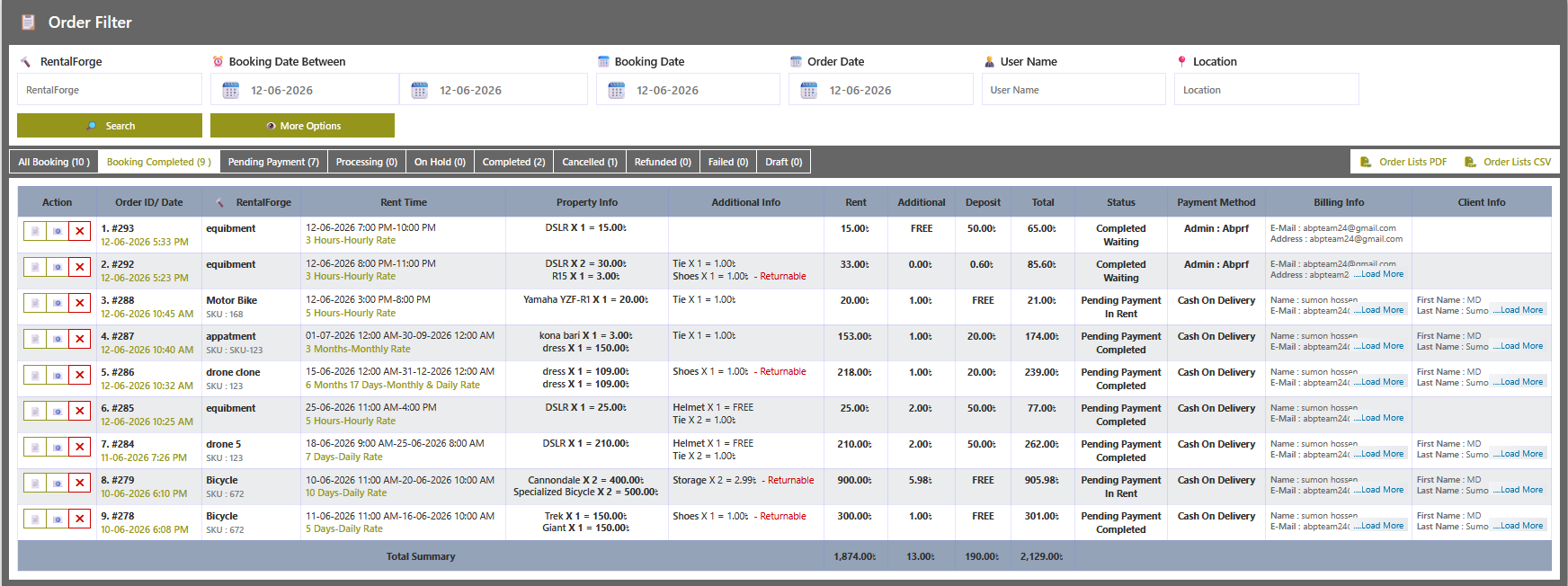
The Orders List section provides a complete overview of all rental bookings and transactions. From here, you can manage, track, filter, and review all customer orders in a centralized dashboard. It is designed to handle large-scale rental operations with advanced filtering and pagination support.
🔎 Advanced Order Filtering System
RentalForge provides a powerful filtering system that allows you to quickly find specific orders based on multiple criteria.
- 👉 Post Name: Filter orders by related rental post or listing.
- 👉 Order ID: Search and locate a specific order using its unique ID.
- 👉 Order Date: Filter orders based on a specific order creation date.
- 👉 Order Date Between: Select a date range to view orders within a specific period.
- 👉 Booking Date: Filter orders based on the actual rental booking date.
- 👉 Booking Date Between: Search bookings within a selected date range.
- 👉 User Name: Find orders placed by a specific customer.
- 👉 Location: Filter orders based on property or rental location.
- 👉 Billing Name: Search using billing customer name.
- 👉 Billing Email: Filter orders using customer email address.
- 👉 Billing Phone: Search orders using customer phone number.
📊 Order Management Features
- 👉 View complete order details including customer, property, pricing, and booking information
- 👉 Track order status and rental activity in real-time
- 👉 Access full billing and customer information per order
- 👉 Organized table view for easy scanning and management
📄 PDF & CSV pro
- 👉 Order List PDF: Download the filtered orders as a branded PDF document with one click.
- 👉 Order List CSV: Export the filtered orders to CSV, ready for Excel, Google Sheets or any accounting tool.
- 👉 Both documents follow the column settings you choose in Configuration → Order Lists PDF/CSV.
✉️ Re-send Mail pro
- 👉 Use the Re-send Mail button to deliver the booking confirmation e-mail and PDF ticket to the customer again.
- 👉 Useful when a customer never received the first e-mail or asks for a new copy.
✅ Check-In pro
- 👉 When an order status is booked, the Not Checked! button appears next to the order.
- 👉 Click it to mark the customer as checked in; the button changes to Checked and records who checked them in.
- 👉 Helps you confirm that every booking has actually been served.
📄 Pagination & Performance
- Fully paginated order system for handling large datasets efficiently
- Optimized query structure for fast loading performance
- Smooth navigation between pages without performance degradation
🗑️ Order Actions
- 👉 Delete Order: Permanently remove an order from the system when no longer needed.
- 👉 View full order details before performing any action to ensure safe management.
🚀 Benefits
- Advanced filtering for fast order tracking
- Full visibility of customer and booking data
- Scalable system for high-volume rental businesses
- Optimized performance with pagination support
- Easy order management with minimal effort
➕ Add Order From Dashboard
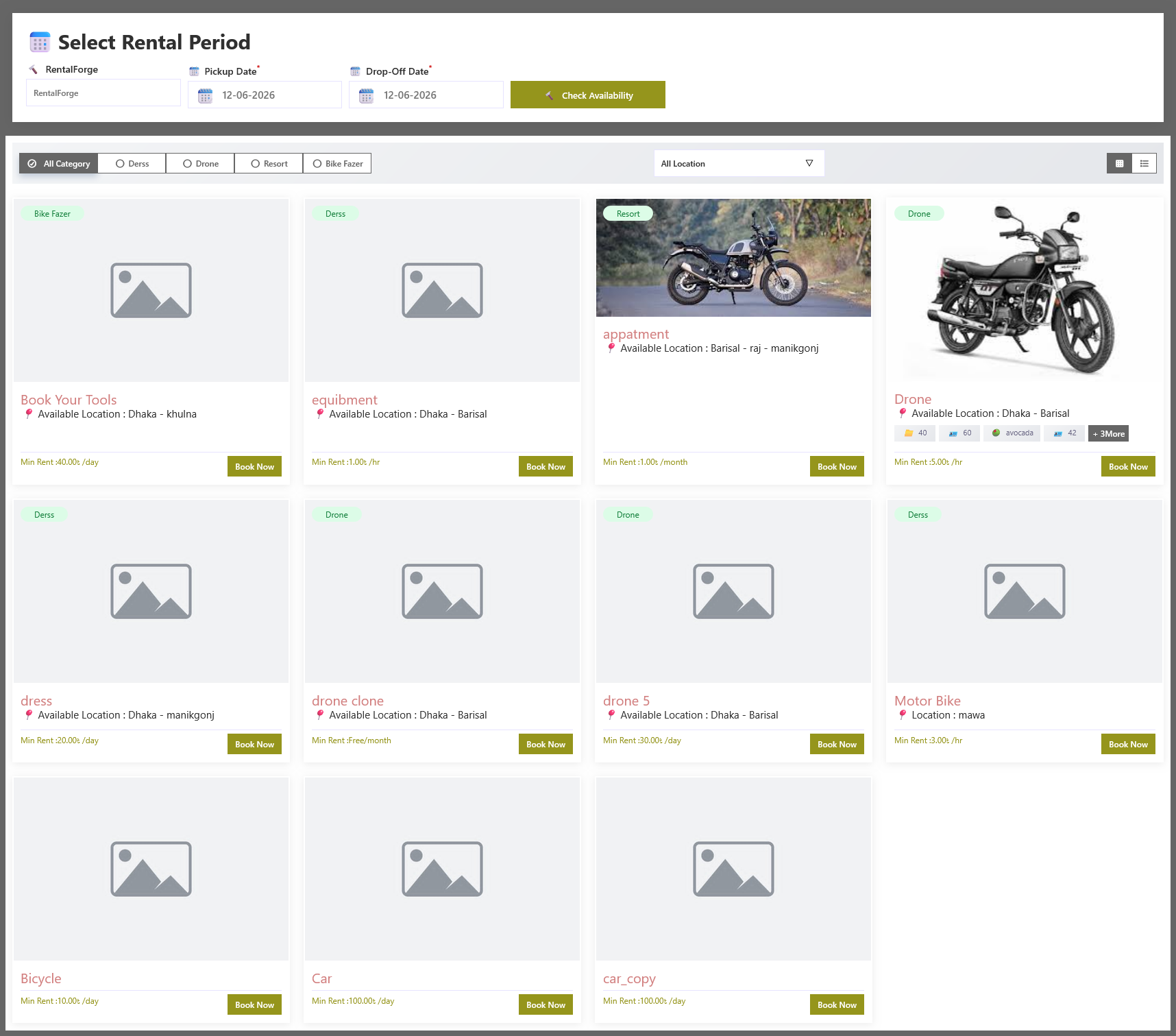
The Add Order feature allows administrators to create rental orders directly from the dashboard without requiring customers to complete the checkout process. This is ideal for phone bookings, walk-in customers, offline reservations, and custom rental arrangements.
Using the same booking experience available on the frontend, administrators can easily select rental items, choose start and end dates and times, configure booking details, and generate orders within a few clicks.
- Create rental orders directly from the admin dashboard.
- No online payment is required to create an order.
- Select any available rental item or listing with ease.
- Use the same date, time, and availability selection system available on the frontend.
- Add custom customer information, including name, email, phone number, and billing details.
- Send booking notifications to any custom email address during order creation.
- Perfect for manual bookings, corporate reservations, and offline rental management.
- Quickly create and manage orders without leaving the dashboard.
This feature provides complete flexibility for rental businesses, allowing administrators to efficiently manage both online and offline bookings from a single centralized dashboard.
🌐 RentalForge – Global Data Configuration
Global Data holds the system-wide default settings of RentalForge. Every item (property, equipment, vehicle, etc.) inherits these values automatically. A global value can be overridden for a single item from the item's own Post Management settings, so you keep one place to manage the defaults while still being able to customize each item.
Think of Global Data as your central control panel: set a default once here and every rental item picks it up. Whenever a particular item needs something different, simply override that single value from the item's own settings without affecting the rest of your catalogue.
📂 What Global Data Covers
| Global Section | What it does |
|---|---|
| Dates | Manage the default date configuration that every rental item inherits. |
| Additional Services | Create default additional services that can be offered on any rental item. |
| Client Form | Define the default customer information form fields. |
| Terms & Conditions | Set the default terms & conditions text shown on every item. |
| FAQ | Manage the default frequently asked questions. |
| Category / Location / Brand | Create and manage the global categories, locations and brands used across all items. |
| Feature | Create default feature/rules lists that describe each rental item. |
📅 RentalForge – Global Date Configuration
Here you can define the global booking date behavior. These settings act as defaults for every rental item unless an item overrides them from its own Date Configuration.
| Field / Option | What it does |
|---|---|
| Rent Type | Choose the rental type (e.g. days, hours, minutes or travel) that applies to your items globally. |
| Available Days | Select which days of the week are available for booking. Bookings are blocked on the days you leave unselected. |
| Date Range | Define how far in advance or how far in the past bookings can be made. |
| Holiday / Off Days | Set specific dates when the item is not available for booking. |
- Adjust the date rules for your business model.
- Items that use the global default will follow these rules automatically.
💰 RentalForge – Global Additional Services Configuration
Additional services are optional add-ons (e.g. insurance, delivery, cleaning) that customers can select during booking. Creating them globally lets you reuse the same services on every rental item.
| Field / Option | What it does |
|---|---|
| Service Title | Give a clear name to the additional service, e.g. "Standard Package". |
| Price | Set the price of the service. You can define fixed prices or a price range. |
| Description | Optionally describe what the service includes so customers understand its value. |
- Click Add Service and fill in the title and price.
- Save the settings. The service becomes available on the booking form of items that use the global additional services.
📋 RentalForge – Global Client Form Configuration
The Client Form collects customer information during booking. Defining it globally keeps the same form fields on every rental item, and you can still customize the form per item when needed.
| Field / Option | What it does |
|---|---|
| Form Title | Give the form a label such as "Customer Information". |
| Field Label | Enter the label shown to customers, e.g. "Full Name", "Email", "Phone Number". |
| Field Type | Select the input type (text, email, number, date, select, etc.) for each field. |
| Required ? | Turn ON to force the customer to fill the field before booking. |
- Add the fields you need for your bookings.
- Save the settings. The form is displayed on the booking page of every item that inherits the global form.
🤝 RentalForge – Global Terms & Conditions Configuration
Terms & Conditions explain your booking rules to customers. The global text below is applied to every rental item automatically unless an item defines its own.
| Field / Option | What it does |
|---|---|
| Terms & Conditions Title | Give the terms a heading, e.g. "Booking Terms". |
| Terms & Conditions Text | Write the actual terms. Customers are expected to accept them to confirm the booking. |
- Enter the title and the full conditions text.
- Save the settings. A tick box with this text appears on the booking form of items that use the global terms.
❓ RentalForge – Global FAQ Configuration
Here you can add frequently asked questions that are shown globally on the rental page. FAQ entries created here are inherited by every item unless an item overrides its own FAQ.
| Field / Option | What it does |
|---|---|
| Question | Write the question customers usually ask, e.g. "How do I cancel my booking?" |
| Answer | Provide a clear and concise answer for the question. |
| Order | Drag or set the order in which the questions are displayed. |
- Click Add FAQ and enter the question and answer.
- Save the settings. The FAQ section appears on items that inherit the global FAQ.
🏘️ RentalForge – Global Category Configuration
Here you can create, update, and delete RentalForge categories easily. You will also find category shortcodes, category details, and many other Options.
- Type Your Category Name here.
- Click to Save Category.
📍 RentalForge – Global Location Configuration
Here you can create, update, and delete RentalForge locations easily. Locations are used as booking/pickup points and for filtering properties across the site. You will also find location shortcodes and many other options.
| Field / Option | What it does |
|---|---|
| Location Name | Type the name of the location, e.g. "New York - Downtown". |
| Shortcode | Each location provides a shortcode that you can place on any page to show the properties available at that location. |
- Type Your Location Name here.
- Click to Save Location.
- Drop the location shortcode into a page or widget to display its properties.
🏷️ RentalForge – Global Brand Configuration
Brands identify the make or supplier of your rental items (e.g. a vehicle manufacturer or equipment producer). Managing brands globally keeps your item names consistent and makes filtering easier.
| Field / Option | What it does |
|---|---|
| Brand Name | Type the name of the brand, e.g. "Toyota" or "Bosch". |
| Description | Optionally add a short description of the brand. |
- Type Your Brand Name here.
- Click to Save Brand.
- The brand becomes selectable when creating or editing a property.
🔗 RentalForge – Global Feature Configuration
Features are the highlighted points you want customers to see about your items (e.g. "Free cancellation", "Air conditioning", "24/7 support"). Creating them globally lets you reuse the same features on every rental item.
| Field / Option | What it does |
|---|---|
| Feature Title | Give a short name to the feature, e.g. "Free Cancellation". |
| Icon | Optionally choose an icon that will be displayed next to the feature. |
- Type Your Feature Name here.
- Click to Save Feature.
- The feature appears on items that inherit the global feature list.
⚙️ Configuration Overview
Configuration holds the system-wide defaults of RentalForge. Values set here apply to every property automatically — and a single property can still override them from its own settings. This lets you manage the look and behaviour of the whole site from one place.
📚 Configuration sections
| Section | What it controls |
|---|---|
| 🛠️ RentalForge | Main plugin defaults — booking labels, URL slugs, search form layout and general behaviour. |
| 📄 PDF (PRO) | Branding of generated PDF documents — logo, colors, background and terms. |
| 📑 Order Lists PDF / CSV (PRO) | Which columns appear when you download order lists as PDF or CSV. |
| 📧 E-mail (PRO) | Booking confirmation e-mails, PDF tickets, admin notifications and mail templates. |
| ✂️ Discount (PRO) | Global Seasonal and Early Bird discounts plus location-based pricing. |
| 🖼️ Slider | How property image sliders and thumbnails behave on the website. |
| ☎️ Contact Information | Company name, address, phone and e-mail used in documents and footers. |
| 🎨 CSS Property | Colors, border radius and font sizes used by the RentalForge section. |
🛠️ RentalForge Configuration
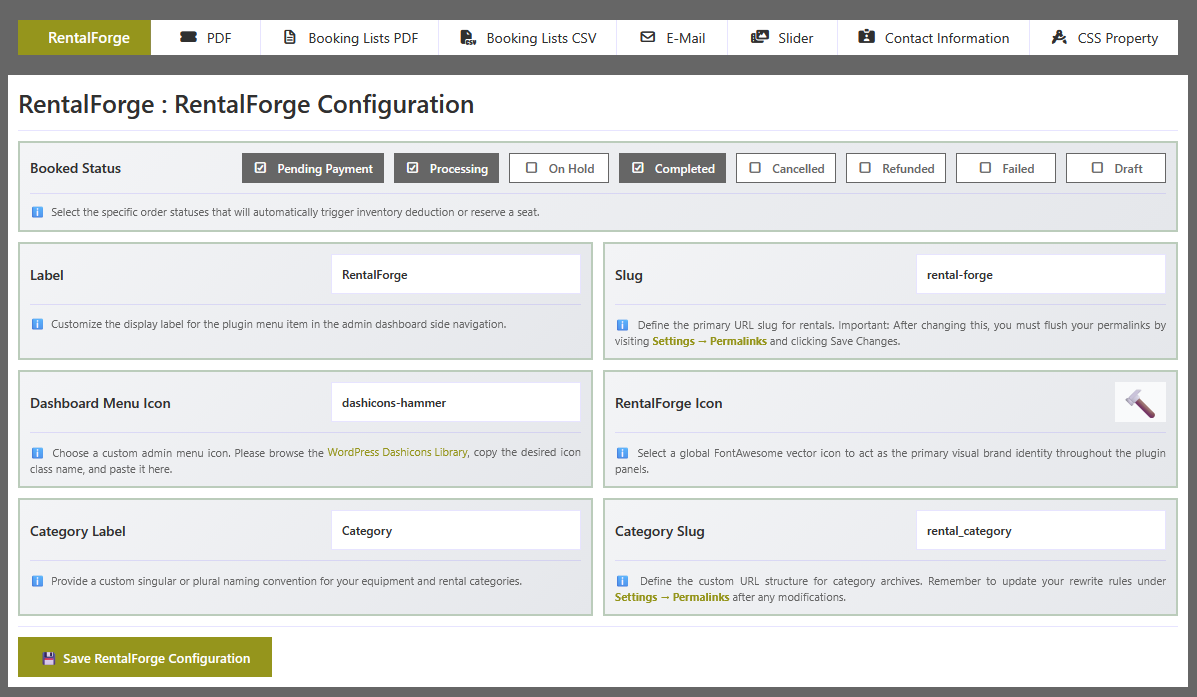
Configure the core settings of RentalForge from this section. These global options control dashboard labels, menu appearance, URLs, icons, and booking behavior across the entire plugin.
| Field / Option | What it does |
|---|---|
| Booked Status | Select the order status at which a rental item, seat, or resource will be considered booked and its availability will be reduced accordingly. |
| Label | Customize the main RentalForge menu label displayed in the WordPress admin dashboard to match your business terminology. |
| Slug | Define a custom URL slug for RentalForge pages. After updating the slug, refresh your permalinks by navigating to Settings → Permalinks and clicking the Save Changes button. |
| Dashboard Menu Icon | Choose a custom Dashicon for the RentalForge dashboard menu. Visit the Dashicons Library, copy your preferred icon class, and paste it here to update the menu icon. |
| RentalForge Icon | Upload or select a custom icon to represent RentalForge throughout the plugin interface and related sections. |
| Category Label | Customize the category label displayed within the dashboard menu and plugin interface to better fit your rental business structure. |
| Category Slug | Set a custom URL slug for categories. After making changes, refresh your permalinks by navigating to Settings → Permalinks and clicking the Save Changes button. |
📄 PDF Configuration
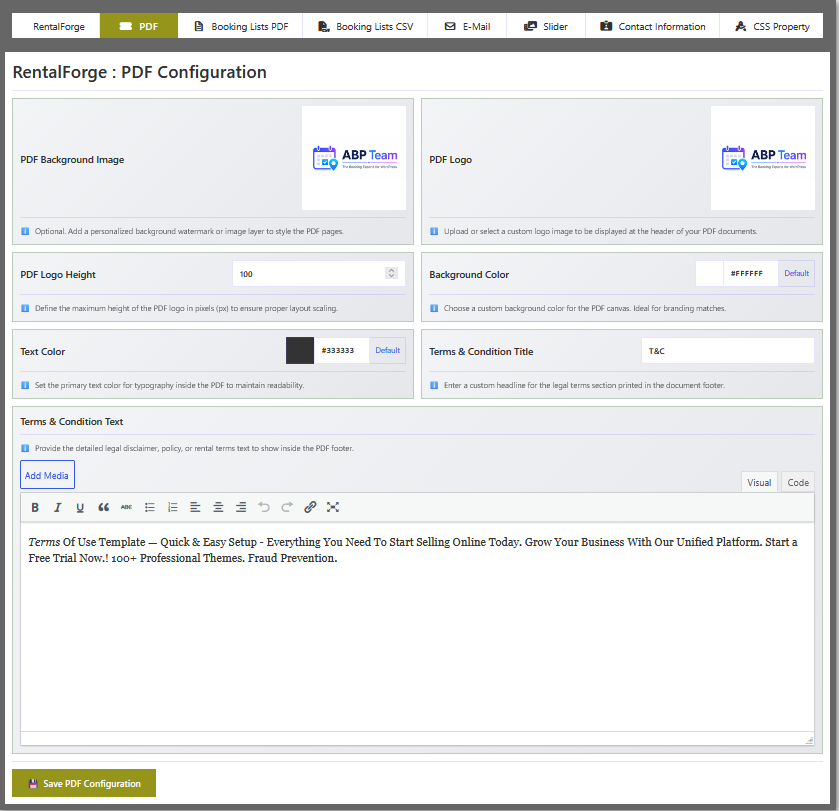
Manage all PDF-related settings from a single place. These options allow you to customize the appearance, branding, colors, and footer content of all PDF documents generated by RentalForge, including rental agreements, booking confirmations, invoices, passenger lists, and other downloadable documents.
| Field / Option | What it does |
|---|---|
| PDF Background Image | Upload a custom background image to enhance the visual appearance of your PDF documents and reinforce your brand identity. |
| PDF Logo | Upload your company logo to display on all generated PDF documents. A branded logo helps create a professional and trustworthy experience for your customers. |
| PDF Logo Height | Define the logo height in pixels to ensure it fits perfectly within the PDF layout without affecting document readability. |
| Background Color | Choose a background color that complements your brand and improves the overall presentation of generated PDF files. |
| Text Color | Select the primary text color used throughout PDF documents to maintain readability and visual consistency. |
| Terms & Conditions Title | Specify a custom heading for the Terms & Conditions section that appears at the bottom of generated PDF documents. |
| Terms & Conditions Text | Enter the terms, policies, disclaimers, or additional information you want customers to see in the footer section of all generated PDF documents. |
📑 RentalForge - Order Lists PDF Configuration pro
These settings control which columns and values appear inside the order list PDF document. Turn a column ON to include it in the PDF, or OFF to hide it.
| Column | What it controls |
|---|---|
| Book Status | Shows whether each booking is active or cancelled. By default, ON |
| Order Status | Shows the current WooCommerce order status (e.g. processing, completed). By default, ON |
| Payment Method | Shows the payment method used for the order. By default, ON |
- Toggle the columns you want to display in the generated PDF.
- Save the settings and use the "Order Lists PDF" button in the Orders page to download the document.
📑 RentalForge - Order Lists CSV Configuration pro
These settings control which columns appear inside the exported order list CSV file. Turn a column ON to include it in the CSV, or OFF to hide it.
| Column | What it controls |
|---|---|
| Order ID | Shows the WooCommerce order number. By default, ON |
| Property / Post | Shows the rental property (post) name and ID. By default, ON |
| SKU | Shows the product SKU when one is set. By default, ON |
| Category / Location / Brand | Shows the property category, pickup location and brand. By default, ON |
| Client & Additional Info | Shows the customer (client) form data and the additional services information. By default, ON |
| Booking Details | Shows rent rule, booking date, duration, order date, ticket name and price. By default, ON |
| Book / Order Status | Shows the booking status and the WooCommerce order status. By default, ON |
| Payment Method & Billing | Shows the payment method and the customer billing information. By default, ON |
- Toggle the columns you want to include in the exported file.
- Save the settings and use the "CSV" download button in the Orders page to export the filtered orders.
📧 E-Mail Configuration pro
The E-Mail section controls the automatic e-mails your customers receive after a booking. You can switch the mail system on or off, attach a PDF ticket and fully customise the message with the placeholders below.
| Field / Option | What it does |
|---|---|
| Send Mail ? | Turn the light ON to auto-send the booking e-mail to your client. The mail won't be sent if OFF. By default, ON |
| Send pdf Ticket ? | If you would like to email with PDF ticket, turn ON otherwise the PDF won't be sent if OFF. By default, ON |
| Which status send Mail ? | Please choose the order status for which the mail will be sent. |
| Mail Subject | Add a subject to your email, please. Alternatively, your site title will be used. |
| Mail Content |
Please use these placeholders to get real data in your e-mail.
|
| Re-send Mail Content |
Please use these placeholders to get real data in your e-mail.
|
| Admin Notification Mail | After an order is placed, if the admin would want to get a PDF ticket, please give a mail address. |
| Mail From Name | The email from name should be added here, otherwise the site title will be used. |
| Mail From Mail | The email from mail should be added here, otherwise it will be your admin mail. |
✂️ RentalForge - Discount Configuration pro
Discounts let you reward your customers and react to demand automatically. RentalForge Pro offers two discount rules — Seasonal Discount and Early Bird Discount — plus the advanced Location Wise Pricing & Quantity feature. Discounts can be set globally and then overridden for a single property.
🌤️ Seasonal Discount
Apply a percentage discount during certain dates of the year — for example a lower rate in low season or a special price during a local festival.
| Field / Option | What it does |
|---|---|
| Seasonal Discount ? | Turn ON to enable the seasonal rules for this property (or globally). By default, OFF |
| Start Date | Pick the first day of the discounted period. |
| End Date | Pick the last day of the discounted period. |
| Discount (%) | Percentage to deduct from the normal price, e.g. 10 means 10% off. Click Add New Seasonal date Range to create more than one period. |
🐦 Early Bird Discount
Reward customers who book before a certain date. Customers booking inside the Early Bird window automatically get the percentage you define.
| Field / Option | What it does |
|---|---|
| Early Bird Discount ? | Turn ON to enable the early bird rules for this property (or globally). By default, OFF |
| Start Date / End Date | Define the booking window during which the discount applies. |
| Discount (%) | Percentage deducted from the rental price for early bookings, e.g. 15. |
📍 Location Wise Pricing & Quantity
When a property has more than one location, you can set a different price, stock quantity and deposit for each location. This is perfect when one branch charges more or has fewer items than another.
| Field / Option | What it does |
|---|---|
| Location Wise Pricing & Quantity ? | Turn ON to reveal one settings block per location. |
| Per-location Price | Enter the price for each rental rule (hourly, daily, multi-day, monthly, multi-month) separately for every location. |
| Quantity / Reserve | Set the total available stock and how many items are kept as reserve for that location. |
| Min / Max Quantity | Limit how few or how many items a customer can book per order. |
| Deposit | Choose a deposit type and value (fixed amount or percentage) that is charged for bookings from that location. |
| Seasonal / Early Bird per location | Each location can also have its own seasonal and early bird rules, so discounts differ from one branch to another. |
💡 Where to configure
- 👉 Global level: RentalForge → Global Data → ✂️ Global Discount (applies to every item).
- 👉 Property level: Edit a property → Discount tab (overrides the global value for that item).
- 👉 Location level: On the property price settings, enable Location Wise Pricing & Quantity to manage each location separately.
- Turn the discount type you want ON.
- Set the date range and the discount percentage.
- Click Save — customers now see the discounted price automatically on the booking form.
🖼️ RentalForge - Slider Configuration
The Slider section controls how the images of a property are shown on its details page — as a full slider, a thumbnail-only preview, or with a fullscreen popup. All changes apply instantly to the whole site.
| Field / Option | What it does |
|---|---|
| Slider/Thumbnail ? | Please turn the slider switch ON or OFF if you are only showing the thumbnail. By default, ON |
| Slider Theme | Please choose the theme style for the slider. |
| Visible Indicator ? | If you hide the indicator, please switch OFF; or to show the indicator switch ON. By default, ON |
| Indicator Type | Please select the slider indicator type. Default: Default Icon |
| Visible Showcase ? | If you hide the showcase, please switch OFF; or to show the showcase switch ON. By default, ON |
| Showcase Position | Please select the slider showcase position. Default: Right |
| Visible Popup ? | If you hide the popup slider, please switch OFF; or to show the popup slider switch ON. By default, ON |
| Popup Image Indicator | If you hide the Popup Image Indicator, please switch OFF; or to show the Popup Image Indicator switch ON. By default, ON |
| Popup Icon Indicator | If you hide the Popup Icon Indicator, please switch OFF; or to show the Popup Icon Indicator switch ON. By default, ON |
☎️ Contact Information Configuration
The Contact section stores your business details once, in one place. These values are then used automatically in the PDF documents, billing information and e-mails — enter them once and they follow everywhere.
| Field / Option | What it does |
|---|---|
| Company Name | The name of your business as it should appear on documents. |
| Address | The full street address of your business. |
| Contact Number | The phone number customers can call. |
| The business e-mail address used on documents and printed tickets. |
✅ Where this information is used
- 👉 PDF documents and tickets: shown on generated PDF documents and tickets pro.
- 👉 Billing information: used in the billing information section of bookings.
- 👉 E-mail sender details: used as the sender details for the booking e-mails.
🎨 CSS Property Configuration
The CSS Property section lets you restyle the booking section without touching any code. Change the brand colors, border radius and font sizes below and they apply to every RentalForge element. All values are set in pixels (PX units).
| Field / Option | What it does |
|---|---|
| Base Color | Choose the standard base color. |
| Alternate Color | By choosing the default theme alternate color, the text color will be used if the backdrop color is Base Color, or alternately. |
| Default Color | Select the default text color. |
| Default Border Radios | Type the default border radius (in PX units). |
| Default Font Size | Enter the default font size (in PX units). |
| Font Size h1 | Enter the h1 font size (in PX units). Default: 35px |
| Font Size h2 | Enter the h2 font size (in PX units). Default: 30px |
| Font Size h3 | Enter the h3 font size (in PX units). Default: 25px |
| Font Size h4 | Enter the h4 font size (in PX units). Default: 20px |
| Font Size h5 | Enter the h5 font size (in PX units). Default: 17px |
| Font Size h6 | Enter the h6 font size (in PX units). Default: 15px |
| Label Font Size | Enter the label font size (in PX units). Default: 14px |
| Button Font Size | Enter the button font size (in PX units). Default: 13px |
| Button Text Color | Select the button text color. |
| Button Background Color | Select the button background color. |
| Warning Color | Select the warning color. |
| Section Background color | Here you can add the section background color. |
🛡️ Status & Information
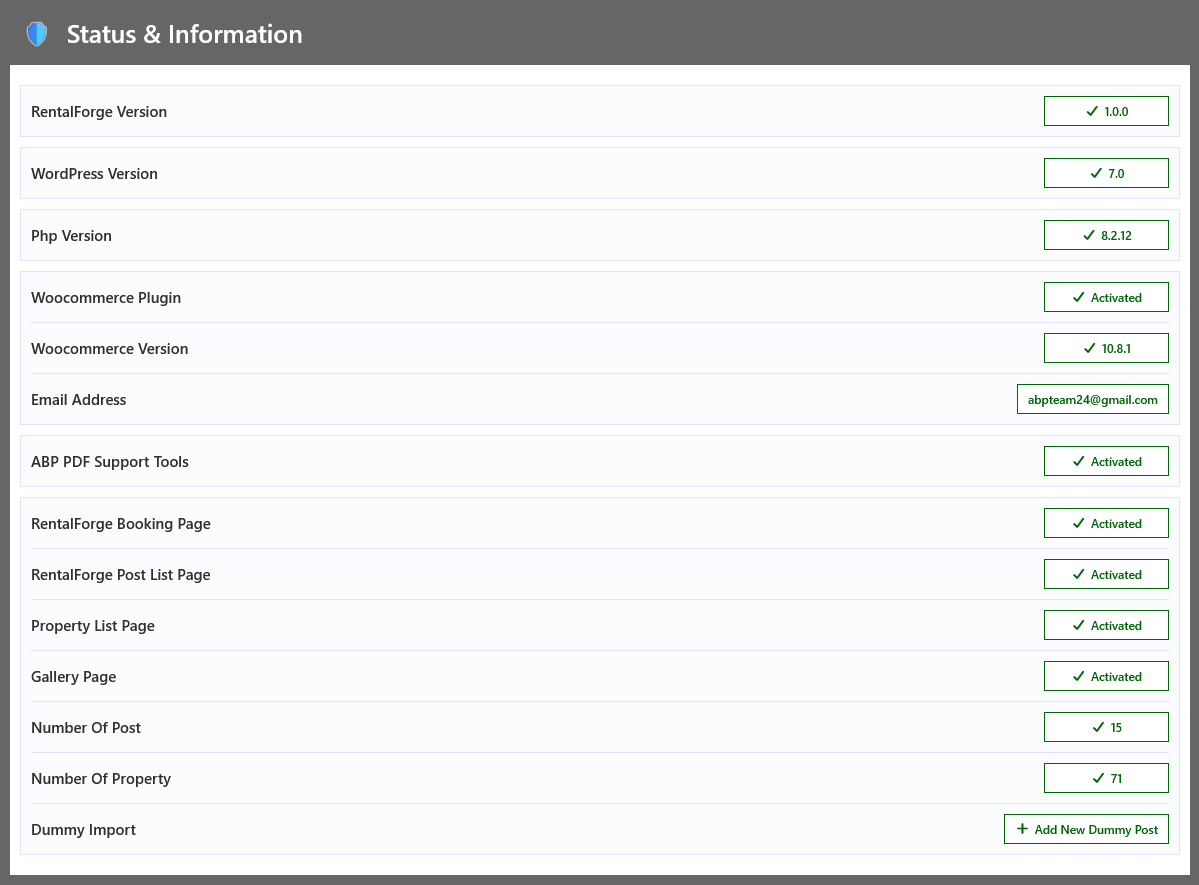
This section provides essential system information and setup status for RentalForge.
- RentalForge Version : Displays the currently installed version of RentalForge. Keeping the plugin updated ensures access to the latest features, performance improvements, and security updates.
- WordPress Version : Shows the current WordPress version running on your website. RentalForge is regularly tested with supported WordPress releases for maximum compatibility.
- PHP Version : Displays the PHP version installed on your server. Using a supported and up-to-date PHP version improves performance, stability, and security.
- Woocommerce Plugin : RentalForge is fully integrated with WooCommerce for booking, cart, checkout, and order management. If WooCommerce is not installed or activated, use the provided button to install and activate it.
- Woocommerce Version : Displays the currently installed WooCommerce version. This helps ensure compatibility between RentalForge and WooCommerce features.
- Email Address : Shows the administrator email address configured for your website. Important booking notifications and system-related communications may be sent to this address.
- ABP PDF Support Tools : pro Enables PDF generation and download features within RentalForge. Install and activate the ABP PDF Support Tools addon if you want to generate invoices, booking documents, or downloadable PDF files.
- RentalForge Booking Page : Displays the status of the booking page used by RentalForge. You can automatically create the page or manually place the booking shortcode on any page.
- RentalForge Post List Page : Displays the status of the rental item listing page. This page is used to showcase available rental products and can be generated automatically or configured manually.
- Property List Page : Displays the page assigned to show rental properties, vehicles, equipment, or other rentable items available on your website.
- Gallery Page : Displays the page used to showcase rental item galleries, property images, and other visual content for customers.
- Number of Post : Shows the total number of rental posts, listings, or items currently available in your RentalForge system.
- Number of Property : Shows the total number of properties, assets, vehicles, or rentable resources managed by RentalForge.
- Dummy Import : Import sample rental data to quickly explore RentalForge features and configurations. This is useful for testing, demonstrations, and initial setup.
🔑 RentalForge - License Activation pro
The Pro version needs a license key to unlock PDF, E-mail, CSV, Discount, Location Stock and all other premium features. Follow the steps below and everything will be ready in a minute.
🛒 1. Get your license key
- 👉 Buy RentalForge Pro from the ABP Team store and log in to your account.
- 👉 Open the Downloads / Licenses page in your account.
- 👉 Copy the license key shown there (it looks like
XXXXXXXX-XXXXXXXX-XXXXXXXX).
⚙️ 2. Activate the license
Activate on your live website — not on a demo or staging site. Each key is locked to the site where it is first activated and allows a limited number of activations. Activating on a staging site consumes a slot and will not license your live site.
- 👉 Go to RentalForge → License in the admin menu.
- 👉 Paste your license key in the License Key field.
- 👉 Click Activate License.
- 👉 A green Active badge confirms your key is working.
📋 3. Understand the status
| Status | Meaning |
|---|---|
| Active | The license is valid and all Pro features are unlocked. |
| Inactive | A key has not been activated yet — enter your key and activate. |
| Invalid | The key is wrong or does not belong to this product. |
| Expired | The license period has ended. Renew your license to continue using Pro features. |
| Expiry date | Shows the date until which the license is valid. |
| Deactivate License | Use this when moving the site to a new domain so the key can be activated elsewhere. |
🔄 4. Move to another site
- 👉 From the old site: RentalForge → License → Deactivate License.
- 👉 From the new site: activate the same key again.
- 👉 Auto-updates are handled through the store — renew your license to keep receiving updates.
- Copy the key from your ABP Team account.
- Paste it in RentalForge → License.
- Click Activate License and confirm the Active badge.
🔗 RentalForge - Shortcodes
Below are all available RentalForge shortcodes with their details. You can use these shortcodes in any page, post, or widget area. Each shortcode supports parameters that allow you to control layout, filtering, and frontend behavior. Please use parameters carefully, as they directly affect output display and rental functionality.
All listing shortcodes ( ,
📅Select Rental Period
No Results Found !
,
No Results Found !
) also accept these shared parameters:
Ducati Panigale V4 Tesla
Yamaha YZF-R1 Hilton Worldwide
BMW S1000RR Canon
Kawasaki Ninja H2 Puma
Honda CBR1000RR-R Fireblade Hilton Worldwide
BMC Hilton Worldwide
Trek BMW
Giant Autel Robotics
Cannondale Adidas
Specialized Bicycle Nikon
Bugatti Chiron Tesla
Ferrari SF90 Stradale Yamaha
Rolls-Royce Phantom Hilton Worldwide
Tesla Model S Plaid Adidas
Lamborghini Revuelto DJI
DJI Mini 4 Pro DJI
DJI Air 3S DJI
Autel EVO Lite+ Autel Robotics
No Results Found !
| Parameter | Description |
|---|---|
| brand_id | Filter posts by brand ID. |
| sort | Sorting order of the results. ASC, DESC | Default: ASC |
| pagination | Enable or disable pagination. yes, no | Default: yes |
| pagination-style | Pagination behavior. live | Default: live |
| form | Search form layout. inline, yes, no | Default: inline |
📅 Booking shortcode
📅Select Rental Period
No Results Found !
This shortcode allows you to display the complete RentalForge booking form on any page, post, or custom layout. This provides a flexible way to create a dedicated booking page without requiring visitors to access a specific rental item page.
When a rental item is selected, customers can complete the entire booking process directly from the shortcode page. The booking experience is identical to the rental details page, ensuring a consistent and user-friendly reservation workflow.
| Parameter | Description |
|---|---|
| style | Layout style of the listing. grid, list, masonry | Default: grid |
| post_id | Display a specific post. When used, other filtering parameters will be ignored. |
| cat_id | Filter posts by category ID. |
| loc_id | Filter posts by location ID. |
| rent_rule | Filter by rental type: hourly, daily, multi_day, monthly, multi_month |
| show | Number of posts to display. Default: 9 |
| column | Number of columns (only works with grid layout). Default: 3 |
📄 Post List shortcode
No Results Found !
Use this shortcode to display the rental post listing anywhere on your website. You can place it inside any page, post, or widget area. The following parameters allow you to customize the output.
| Parameter | Description |
|---|---|
| style | Layout style of the listing. grid, list, masonry | Default: grid |
| post_id | Display a specific post. When used, other filtering parameters will be ignored. |
| cat_id | Filter posts by category ID. |
| loc_id | Filter posts by location ID. |
| rent_rule | Filter by rental type: hourly, daily, multi_day, monthly, multi_month |
| show | Number of posts to display. Default: 9 |
| column | Number of columns (only works with grid layout). Default: 3 |
🏠 Property List shortcode
Ducati Panigale V4 Tesla
Yamaha YZF-R1 Hilton Worldwide
BMW S1000RR Canon
Kawasaki Ninja H2 Puma
Honda CBR1000RR-R Fireblade Hilton Worldwide
BMC Hilton Worldwide
Trek BMW
Giant Autel Robotics
Cannondale Adidas
Specialized Bicycle Nikon
Bugatti Chiron Tesla
Ferrari SF90 Stradale Yamaha
Rolls-Royce Phantom Hilton Worldwide
Tesla Model S Plaid Adidas
Lamborghini Revuelto DJI
DJI Mini 4 Pro DJI
DJI Air 3S DJI
Autel EVO Lite+ Autel Robotics
No Results Found !
Use this shortcode to display rental property listings anywhere on your website.
| Parameter | Description |
|---|---|
| style | Layout style. grid, list | Default: grid |
| post_id | Display a specific property. Overrides other filters. |
| cat_id | Filter by category ID. |
| loc_id | Filter by location ID. |
| brand_id | Filter by brand ID. |
| rent_rule | Rental type filter: hourly, daily, multi_day, monthly, multi_month |
| show | Number of properties to display. Default: 9 |
| column | Number of columns (grid layout only). Default: 3 |
🖼️ Gallery shortcode
Gallery
Use this shortcode to display property image galleries or sliders anywhere on your website.
| Parameter | Description |
|---|---|
| style | Display type: gallery, slider | Default: gallery |
| post_id | Show gallery for a specific post only. |
| cat_id | Filter gallery by category. |
| loc_id | Filter gallery by location. |
| rent_rule | Filter by rental type: hourly, daily, multi_day, monthly, multi_month |
| column | Number of images per row (gallery mode only). Default: 3 |
🧩 RentalForge: Templating
RentalForge provides a powerful template override system that allows you to customize plugin design, classes, icons, and frontend structure according to your requirements.
📁 How the template override works
To start customizing, copy the rf_templates folder from the RentalForge plugin directory and paste it into your wp-content directory. Once added, RentalForge will automatically load your custom templates instead of the default plugin templates.
You only need to keep the template files you intend to modify. Remove all unnecessary files from the copied folder. Otherwise, future plugin updates or new features may conflict with overridden templates and may cause unexpected issues on your site.
This override system requires basic knowledge of WordPress templating and PHP development. Therefore, make changes carefully and only edit files you fully understand.
🌍 RentalForge: Translate
RentalForge is fully translation-ready and can be translated using any WordPress translation plugin. However, we strongly recommend using the Loco Translate plugin for the best experience and easiest workflow.
🌐 To translate RentalForge:
- Go to Plugins → Add New from your WordPress dashboard.
- Search for Loco Translate, then install and activate the plugin.
- Navigate to Loco Translate → Plugins.
- Select the RentalForge plugin from the list.
- Create a new language or edit an existing translation file.
- Click the Sync button to load the latest translatable strings.
- Translate the strings and click Save.
After completing these steps, most frontend and backend texts used by RentalForge will be translated automatically. Please note that some dynamic content and documentation text may not be translatable.